
Opera: Private Web Browser
OperaCommunication
4.899.71K Reviews
- Version
- 103.3.5234.91185
- Installs
- 500.00M
- Age Rating
- Everyone
Screenshots

Our Review of Opera: Private Web Browser
 Analysis by Appyee
When I judge a mobile browser, I look beyond a privacy label and ask what I can actually control, what the app asks me to trust, and whether the extra tools fit the way I browse. Opera: Private Web Browser is Opera’s free communication app, and its appeal is clear: it puts browsing and several convenience features in one place. My cautious take is that those features can make everyday web use easier, but privacy-minded users should still understand the limits of browser-level protection rather than treating any one app as a complete shield.
What a privacy promise means in practice
The browser’s privacy-oriented tools are useful starting points, not a reason to stop thinking about where information goes. A private tab can keep pages out of the ordinary browsing history on the device, but it does not make a website forget what you do while signed in, or erase activity recorded elsewhere. I use private browsing for a temporary search or a shared-device situation, not as a guarantee of anonymity.
That distinction matters when a browser combines several functions. Blocking ads or trackers can reduce interruptions and some forms of tracking, while a VPN-style option may change how a connection is routed. Neither automatically makes every website trustworthy, prevents a person from recognizing an account you logged into, or replaces careful choices about what to share. I find the tools most valuable when I treat them as practical layers rather than magic.
Choosing what to rely on
For a quick read or a routine search, I would use Opera as a convenient everyday browser and decide which built-in options I actually want active. For banking, account recovery, or sensitive work, I would also check that the site address is correct, avoid unexpected login prompts, and use the security controls on the account itself. A browser can make browsing more comfortable; it cannot make a risky link safe just by opening it.
I also recommend taking a moment after installation to review the app’s visible settings and any prompts it presents. This is a more useful habit than tapping through every screen quickly, especially if you are trying to decide whether a feature suits you. Look at what a control says it does, turn on only what helps your routine, and revisit that choice if the experience changes. Trust is easier to assess when you can make deliberate choices instead of assuming that a privacy-focused name settles every question.
First Impressions and Setup
From the get-go, downloading and setting up Opera: Private Web Browser was a breeze. It's available for both Android and iOS, so regardless of your device preference, you’re covered. The installation process was straightforward—no weird permissions or confusing steps, just a simple tap and you’re in.
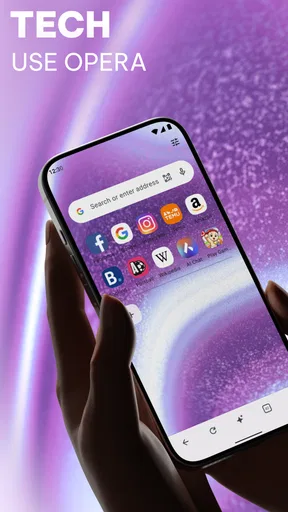
Once you launch the app, you’re greeted by a clean and modern interface. I mean, who doesn't appreciate a sleek design, right? It’s intuitive, with everything neatly placed where you'd expect them to be. This makes transitioning from other browsers like Chrome or Safari pretty seamless.
Features that Stand Out
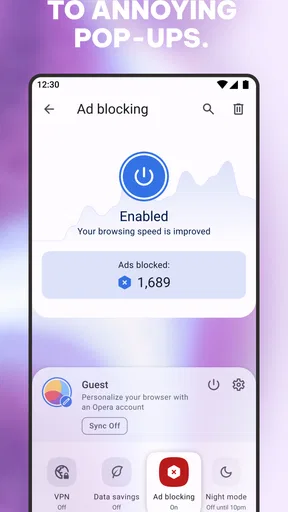
Alright, let’s get into the nitty-gritty of what makes this browser tick. First off, the built-in ad blocker is a game-changer. It’s so refreshing to browse without pop-ups and annoying ads disrupting your flow. It feels like the internet, but with a VIP pass.
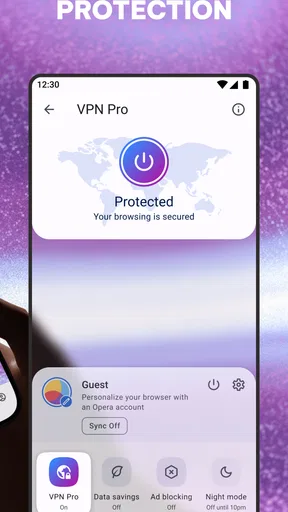
Another nifty feature is the VPN service. Yep, you read that right. It’s not just a browser; it’s a shield. The VPN is free and unlimited, which is super rare in the app world. It’s perfect for those moments when you’re on public Wi-Fi and want to keep your data safe from prying eyes.
The combination of ad-blocking and VPN services is like having a personal bouncer and bodyguard for your online adventures.
Using the built-in tools with care
A useful way to judge the ad blocker is to try the pages you visit most, not just a clean news article. Some sites depend on advertising or embedded scripts for parts of their layout, so if a page behaves oddly, I would test it with the blocker setting changed rather than assume the site is broken. Keeping a personal shortlist of pages that need a different setting can save repeated troubleshooting.
The same practical approach applies to the VPN. I would treat it as a browser convenience for ordinary browsing on a network I do not control, not as a substitute for a trusted connection or secure account habits. If a site behaves differently while the VPN is on, toggling the option for that browsing task may be more sensible than repeatedly refreshing or changing unrelated settings. A tool is most helpful when I know when to use it and when it may get in the way.
Performance and Speed
Now, let me talk about speed. With all these features, you’d think Opera would lag a bit. But nope, it’s surprisingly fast. Pages load quickly, and the browsing experience is smooth as butter. The app claims to boost browsing speed by compressing webpages, and honestly, it shows. You can surf the web without that annoying buffering symbol popping up every now and then.
Everyday browsing and trade-offs
Picture a familiar routine: I’m waiting for a bus, connected to public Wi-Fi, and want to look up a route change, read a local update, and open a couple of pages without a stream of ads interrupting me. Opera’s mix of browsing tools is well suited to that sort of short, practical session. I can keep the task in one browser, use its privacy options where appropriate, and move on without setting up a separate utility for every small need.
There is a trade-off to that convenience. A browser with extra tools may not behave exactly like a minimal browser, and sites can respond differently to ad blocking or a changed connection route. If I rely on a particular website for work, travel, or payments, I would test it before I depend on it during a time-sensitive task. For a person who wants the most predictable compatibility and already has a browser routine they like, switching may not be worthwhile.
Privacy at Its Core
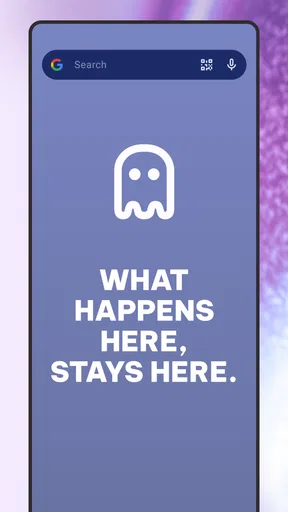
In today’s age of constant surveillance, privacy is a huge deal, and Opera takes it seriously. The browser doesn’t just talk the talk; it walks the walk. With its private mode, you can browse without leaving a trace. No histories, no cookies, nada. Plus, the tracker blocker ensures that your online activity isn’t being monitored by third parties. Pretty reassuring, don’t you think?
Keeping control of a browsing session
Private mode is especially handy when I need a clean, temporary session: for example, checking a page without mixing it into my usual history or using a shared device where I do not want the next person to see a routine search. I would still close the session when finished and avoid saving sensitive details in a form. The useful distinction is between reducing what remains in the browser and controlling everything a site or account might retain; those are not the same thing.
For people moving from another browser, the bigger decision is often not speed but habit. Bookmarks and saved logins shape how quickly a browser feels like home. Opera’s sync feature can help people who use more than one device, but I would first decide whether syncing those items matches my preferences. Someone who keeps work and personal browsing separate may prefer to leave some information unsynced or maintain distinct routines, even if that means a little extra setup.
Extra Goodies
Beyond the essentials, Opera throws in some cool extras. There’s a night mode that saves your eyes from glaring screens when you’re browsing in the dark. And for those who like to stay updated, the personalized news feed is a treasure trove of articles tailored to your interests.
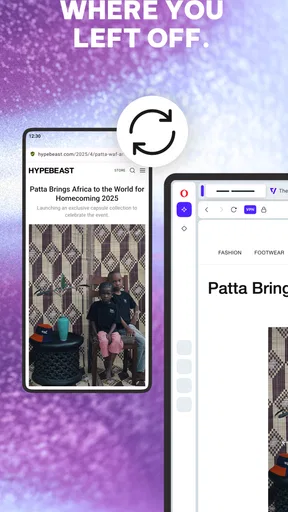
Let’s not forget the sync feature. If you’re someone who juggles multiple devices, you’ll appreciate how easily Opera syncs your bookmarks, tabs, and passwords across all your gadgets. It’s like having your own portable browser wherever you go.
Who will appreciate it, and who may not
I think Opera is a good fit for someone who wants a single mobile browser with practical extras, especially if ad interruptions are a regular annoyance and the built-in privacy tools sound useful. The news feed and night mode also suit people who read casually on their phone and like having those choices close at hand. On the other hand, I would skip it if I want a stripped-back browser, do not want another set of settings to manage, or need every site to behave exactly as it does in my established setup.
Compared with the usual choices such as Chrome or Safari, the main question is whether Opera’s bundled tools are more valuable to me than sticking with the browser already integrated into my device habits. A familiar default can be the easier option for someone who prioritizes consistency and does not need the added features. Opera makes more sense when I will actually use its built-in options; merely having them is not a reason to switch.
What to expect before making it your main browser
Opera is free to download, though it offers in-app purchases ranging from around eight to forty-eight dollars per item. It is rated for Everyone, has a 4.8 average from around 5.3 million ratings, and has been installed over 100 million times. Those figures show that it is widely used, but popularity does not answer the personal question of whether its controls match your comfort level. I would make that decision by trying the interface and reviewing the choices that matter to me.
The app has been available since November 8, 2010, and its current version is 95.3.4982.87478. When choosing a browser, I would also consider whether I want to keep one browser across devices or use different ones for different tasks. A single setup is convenient, while separating personal, work, and temporary browsing can make boundaries easier to maintain. Neither approach is automatically safer; the benefit comes from choosing a routine I can follow consistently.
Final Thoughts
So, is Opera: Private Web Browser worth the download? Absolutely! It’s a powerhouse of features wrapped in a user-friendly package. Whether you’re privacy-conscious, need a speed boost, or just want an ad-free experience, Opera ticks all the right boxes.
Give it a spin and see how it fits into your browsing routine. After all, navigating the internet should be an enjoyable, hassle-free experience, and Opera seems to deliver just that. Happy browsing!
My recommendation is enthusiastic but not unconditional: try it if the combination of browsing, ad blocking, private sessions, and cross-device convenience fits what you actually do. Take a little time to assess the controls rather than assuming every privacy feature covers every situation, and keep your usual safeguards for important accounts. If you prefer a simpler browser or need a different level of control over your browsing setup, staying with another option may be the better call.
Privacy and Permissions
See what permissions an app requests and how it handles your data.
- Location
- approximate location (network-based), precise location (GPS and network-based)
- Photos/Media/Files
- read the contents of your USB storage, modify or delete the contents of your USB storage
- Storage
- read the contents of your USB storage, modify or delete the contents of your USB storage
- Camera
- take pictures and videos
- Microphone
- record audio
- Wi-Fi connection information
- view Wi-Fi connections
- Other
- view network connections, pair with Bluetooth devices, access Bluetooth settings, allow Wi-Fi Multicast reception, full network access, change your audio settings, control Near Field Communication, read sync settings, run at startup, set wallpaper, draw over other apps, control vibration, prevent device from sleeping, toggle sync on and off, install shortcuts
How Opera: Private Web Browser Compares
Full ComparisonUC Browser suits users who want add-ons and customization, Opera is the strongest all-round choice for ad blocking and a built-in VPN, and Opera Mini is geared toward lightweight browsing and saving-
| App | Developer | Rating | Price |
|---|---|---|---|
 UC Browser-Safe, Fast, Private | UCWeb Singapore Pte. Ltd. | 4.4 | Free |
 Opera: Private Web BrowserThis App | Opera | 4.8 | Free |
 Opera Mini: Fast Web Browser | Opera | 4.6 | Free |
Verdict
Strengths of Opera: Private Web Browser
- Fast and efficient web browsing experience.
- Built-in ad blocker enhances speed.
- Free VPN for secure browsing.
- Data-saving features for mobile users.
- Customizable interface and themes.
Limitations of Opera: Private Web Browser
- Limited extension support compared to rivals.
- Occasional VPN connectivity issues.
- Some features require in-app purchases.
- Not as widely supported as Chrome/Safari.
- Syncing issues across devices.
Other Releases by Opera
View All
Opera Mini: Fast Web Browser
Communication4.6

Opera News: breaking & local
News & Magazines4.5

Local News: Headlines & Alerts
News & Magazines4.5
Similar Picks in This Category
View All
Google Messages
Google LLC4.6

Gmail
Google LLC4.1

Google Meet
Google LLC4.4

Google Chrome
Google LLC4.1

WhatsApp Messenger
WhatsApp LLC4.6

Carrier Services
Google LLC4.2
Frequently Asked Questions
What are the key features of Opera: Private Web Browser?
Opera: Private Web Browser offers a range of features designed for privacy and speed. These include a built-in ad blocker, free VPN, crypto wallet, and data-saving modes. The browser also supports personalized news feeds and has a night mode for comfortable browsing in low light. Its intuitive design makes navigation seamless.
How does Opera ensure my privacy while browsing?
Opera prioritizes user privacy by incorporating a free, unlimited VPN that hides your IP address and encrypts your traffic. Additionally, it includes a built-in ad blocker to prevent tracking scripts from monitoring your activity. These features work together to maintain anonymity and secure your data while online.
Is Opera: Private Web Browser compatible with all mobile devices?
Opera is compatible with most Android and iOS devices. It requires Android 5.0 or later and iOS 11.0 or later to function optimally. The app is regularly updated to ensure compatibility with the latest devices and operating system versions, providing a smooth and efficient browsing experience.
Can I sync my Opera browser data across different devices?
Yes, Opera allows you to sync your bookmarks, open tabs, and browsing history across all your devices. By creating an Opera account, you can log in on any device and have your data available instantly. This feature ensures continuity and ease of access, making it ideal for users with multiple devices.
What should I do if I encounter issues with Opera: Private Web Browser?
If you experience any issues, first ensure that you have the latest version of the app. Restarting the app or your device can also resolve minor glitches. For persistent problems, you can visit Opera's support page or community forums for troubleshooting tips and solutions. Feedback can also be submitted directly through the app.
